
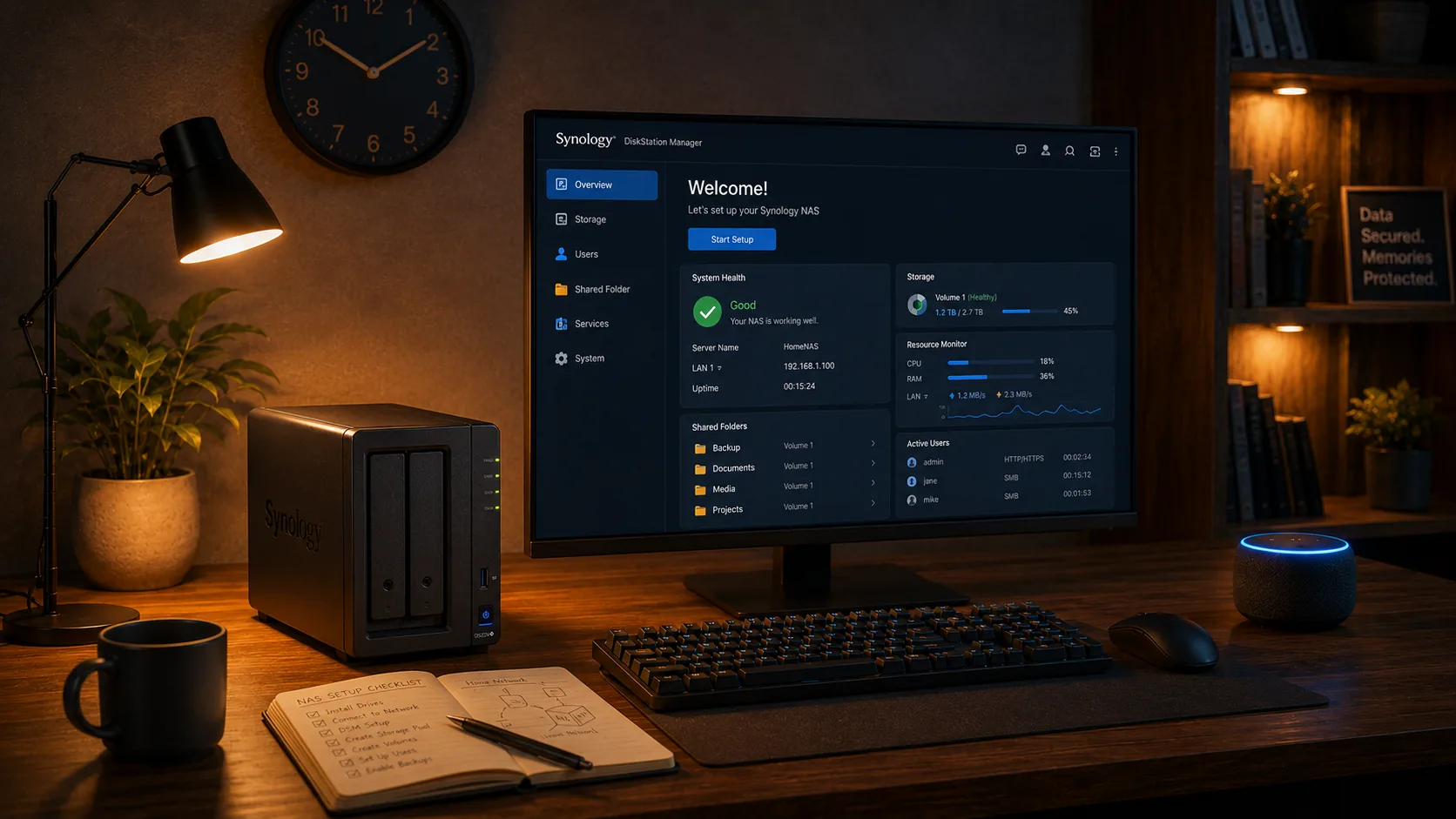
Why there is no package to install
DSM 7 does not allow third-party packages that need system administrator privileges, and shutting a NAS down cleanly needs exactly those privileges. Synology does provide an official tool for this case: the Task Scheduler, which can run a script at boot as the root user. That is how the SayBoot agent runs.
Which file to download
The file depends on the NAS processor, shown under Control Panel → Info Center → CPU. Click the file name to download it.
| NAS processor | File |
|---|---|
| Intel or AMD (most "+" and "xs" models) | sayboot-agent-linux-amd64 |
| 64-bit ARM (Realtek RTD1296, RTD1619, Annapurna) | sayboot-agent-linux-arm64 |
| 32-bit ARM (Marvell Armada 370/385, older models) | sayboot-agent-linux-armv7 |
All files, with SHA256SUMS checksums, are on the releases page. The file is GPG-signed (SHA256SUMS.asc): the public key is at sayboot.com/sayboot-release-key.asc, fingerprint 7163 54BC 551B 86C6 0B20 F676 5519 CD24 C7AC B9C6. Check with gpg --verify SHA256SUMS.asc SHA256SUMS and then sha256sum -c SHA256SUMS.
Installation
Enable Wake on LAN in DSM. Control Panel → Hardware & Power → General: tick Enable WOL on LAN 1 (or the port you use) and save. Without it a powered-off NAS does not listen for the wake signal.
Upload the agent with File Station. Create a folder, for example
sayboot, inside any shared folder and drag the downloaded file into it, without renaming it.Right-click the file → Properties and copy the full path. It looks like
/volume1/shared/sayboot/sayboot-agent-linux-amd64.Get a pairing code. In the SayBoot app go to Devices → Add → Connect without a browser and copy the 8-character code. It is valid for 10 minutes and works once: if it expires, generate another one.
-
Create the scheduled task. Control Panel → Task Scheduler → Create → Triggered Task → User-defined script.
Field Value Task SayBootUser rootEvent Boot-up Enabled ticked In the Task Settings tab, User-defined script field, paste this line with your own path (in both places) and
XXXXXXXXreplaced by the code:chmod +x "/volume1/shared/sayboot/sayboot-agent-linux-amd64" && "/volume1/shared/sayboot/sayboot-agent-linux-amd64" --daemon --code XXXXXXXXThe quotes are required if the path contains spaces, and the path must be identical in both halves of the line. This is the most common mistake.Click OK, then select the task and click Run. The task finishes within a second (the agent keeps running in the background) and within a few seconds the NAS shows as online in the SayBoot app.
The command stays valid forever: the code is used only the first time and ignored afterwards, the task restarts the agent at every NAS boot, and Run restarts it at any time.
Try it with Alexa. Say "Alexa, discover devices" and wait for the confirmation. Then "Alexa, turn off NAS name": the NAS performs a clean shutdown, the same as the power button. With the NAS off, "Alexa, turn on NAS name": the Echo sends the wake signal and the NAS boots; after booting it comes back online in the app by itself.
The name Alexa recognises is the device name in the SayBoot app; you can change it there.
What to expect
- Shutdown and restart work. Sleep and hibernate do not: a NAS has no such states, and SayBoot reports it.
- Scheduled shutdown: from the SayBoot app, like a PC.
- Scheduled power-on: use DSM's own Power Schedule (Control Panel → Hardware & Power). DSM and the agent would use the same hardware alarm, so on Synology the agent leaves it to DSM.
- All agent files (configuration, log, diagnostic reports) live in the
sayboot-statefolder next to the file you uploaded.
If something goes wrong
- The NAS does not show up online. In Task Scheduler select the task → Action → View Result. If you see
cannot accessorNo such file, the path in the command is wrong: copy it again from Properties in File Station. - Code expired or unknown. Generate a new code in the app, update it in the task command, then Run.
- It turns off but does not turn back on. Check Wake on LAN under Hardware & Power and the Ethernet cable. For a full report create a second, one-off task as root with the same path followed by
--diagnose: the report reaches support and we reply with instructions. - New account or re-pairing. In the command replace
--code XXXXXXXXwith--pair --code <new code>, run once, then remove--pair. - Upgrading the agent. Create an
updatesubfolder inside the agent folder, upload the new file there (same name), then Run the task: the agent stops the old version, swaps in the new one and restarts. The operation log issayboot-state/daemon.log.
Need a hand?
Write to hello@sayboot.com with your NAS model and, if any, the text from View Result. This page lives at sayboot.com/synology/en.
Synology and DSM are trademarks of Synology Inc. Alexa, Amazon and Echo are trademarks of Amazon.com, Inc. or its affiliates. SayBoot is an independent application and is not affiliated with, endorsed or sponsored by Synology or Amazon.