
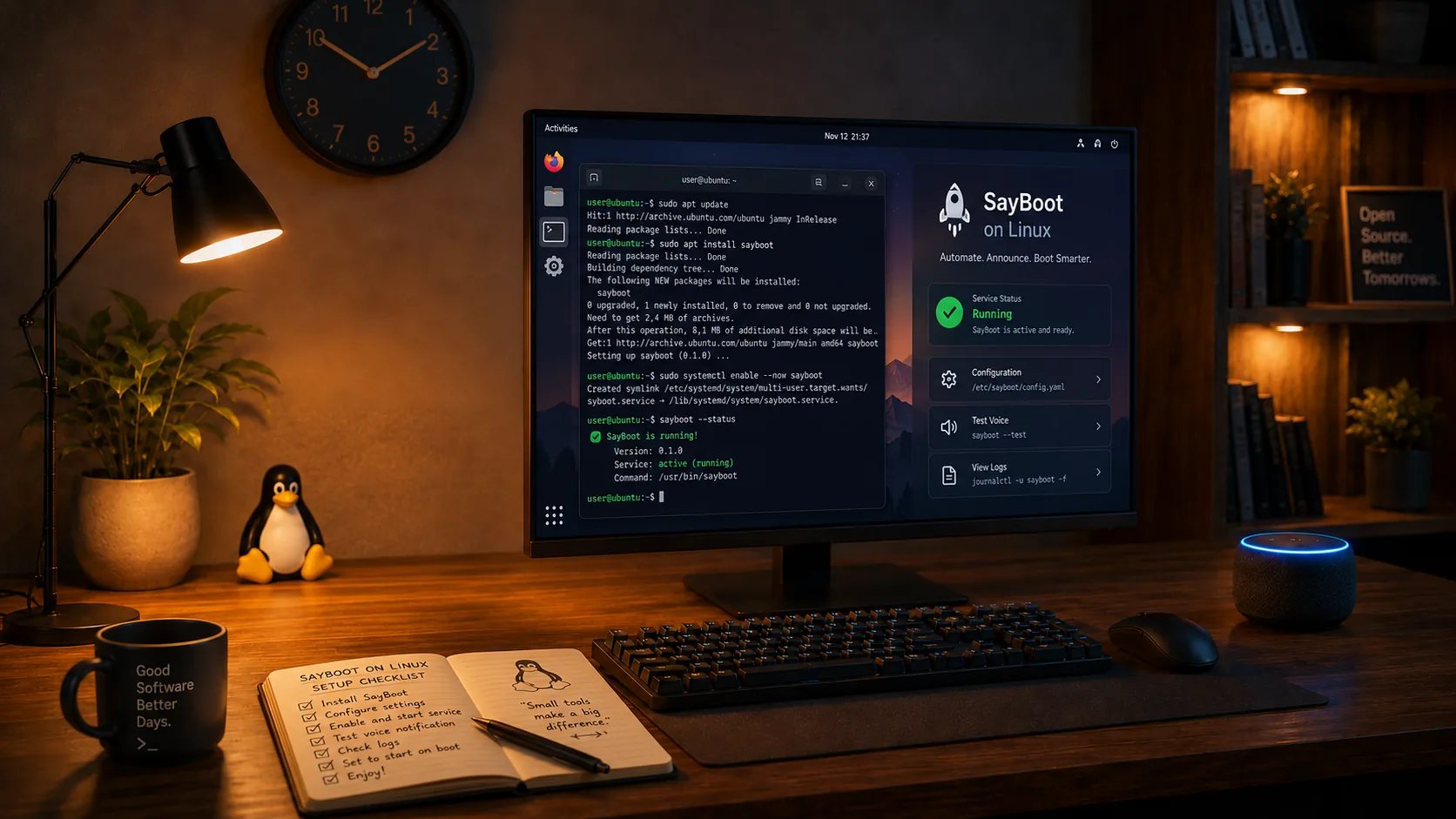
How it works
The agent is a system service (sayboot-agent.service) running under a dedicated user, with no graphical interface. It shuts down, restarts, suspends and hibernates through systemd, authorised by a polkit rule installed together with the service: no sudo, no password. Power-on comes from the Echo as a magic packet; the agent keeps Wake on LAN armed at every boot, which is the number one reason it otherwise stops working after a reboot.
Which file to download
On Debian, Ubuntu and derivatives (Mint, Pop!_OS, Raspberry Pi OS) use the .deb package: it installs the service, the polkit rule and Wake on LAN persistence in one go. On other distributions use the binary, which does the same with --install-system. Check the processor with uname -m: x86_64 → amd64, aarch64 → arm64, armv7l → armv7.
| System and processor | File |
|---|---|
| Debian/Ubuntu · Intel or AMD 64-bit | sayboot-agent-latest-amd64.deb |
| Debian/Ubuntu · 64-bit ARM (Raspberry Pi 4/5, 64-bit Raspberry Pi OS) | sayboot-agent-latest-arm64.deb |
| Other distributions · Intel or AMD 64-bit | sayboot-agent-linux-amd64 |
| Other distributions · 64-bit ARM | sayboot-agent-linux-arm64 |
| Other distributions · 32-bit ARM (Raspberry Pi 2/3, older NAS) | sayboot-agent-linux-armv7 |
All files, with SHA256SUMS checksums, are on the releases page. The file is GPG-signed (SHA256SUMS.asc): the public key is at sayboot.com/sayboot-release-key.asc, fingerprint 7163 54BC 551B 86C6 0B20 F676 5519 CD24 C7AC B9C6. Check with gpg --verify SHA256SUMS.asc SHA256SUMS and then sha256sum -c SHA256SUMS.
Installation
-
Install the package. On Debian/Ubuntu and derivatives, in a terminal:
wget https://github.com/magdale76/sayboot-agent-releases/releases/latest/download/sayboot-agent-latest-amd64.deb
sudo apt install ./sayboot-agent-latest-amd64.deb
On other systemd distributions, download the binary and install it as a service:
chmod +x sayboot-agent-linux-amd64
sudo ./sayboot-agent-linux-amd64 --install-system
Get a pairing code. In the SayBoot app go to Devices → Add → Connect without a browser and copy the 8-character code. It is valid for 10 minutes and works once: if it expires, generate another one.
-
Pair the service with the code in place of
XXXXXXXX:sudo sayboot-agent --code XXXXXXXXThe command pairs on behalf of the service and restarts it. Within a few seconds the PC shows as online in the SayBoot app under its Linux host name; rename it there.
-
Check and arm Wake on LAN.
systemctl status sayboot-agent
sudo sayboot-agent --fix-wol auto
sudo sayboot-agent --diagnose
The first line must say active (running). The second arms magic-packet wake on the connected Ethernet adapter and re-arms it at every boot. The third produces a report (network adapters, Wake on LAN, permissions) that reaches SayBoot support: if something is off, we read it together.
Try it with Alexa. Say "Alexa, discover devices" and wait for the confirmation. Then "Alexa, turn off PC name": a clean shutdown, as from the menu. With the PC off, "Alexa, turn on PC name": the Echo sends the magic packet and the PC boots; the service comes back online by itself.
The name Alexa recognises is the device name in the SayBoot app.
What to expect
- Shutdown, restart, suspend and hibernate work when the distribution supports them (hibernate needs enough swap; the app only shows the actions the agent declares).
- Scheduled shutdown and scheduled power-on from the SayBoot app. For power-on the agent also arms the PC's hardware alarm (RTC), so the rule fires even from full power-off and without an Echo on the network, if the BIOS allows it ("Power on by RTC").
- Dual boot: the magic packet powers the PC on, but which OS starts is decided by the BIOS or GRUB. If Windows is the default, "Alexa, turn on" boots Windows and the Windows agent is the one that reports back. Make Linux the default if you want the Linux service to answer.
- Wi-Fi: almost no Wi-Fi adapter can power on a PC that is off. You need the Ethernet cable, at least for power-on.
- All service files (configuration, log, reports) live in
/var/lib/sayboot. Live log:journalctl -u sayboot-agent -f.
If something goes wrong
- The PC does not show up online.
systemctl status sayboot-agentandjournalctl -u sayboot-agent -n 50say why. If the service stopped with "not paired", repeat step 3 with a new code. - It turns off but does not turn back on. Run
sudo sayboot-agent --diagnoseand look forwol_disabled_linuxorwol_unsupported_adapter. Then the BIOS: "Wake on LAN", "Power on by PCI-E" or "Resume by LAN" must be enabled and "ErP" disabled. - "Alexa, turn off" does nothing. A
logind_deniedentry in the report means polkit does not authorise the service:sudo sayboot-agent --install-systemrewrites the rule. - Upgrading. Download the package again and repeat
sudo apt install ./sayboot-agent-latest-amd64.deb: the service restarts on the new version, the pairing stays. - Removing.
sudo apt remove sayboot-agent(orsudo sayboot-agent --uninstallif you used the binary)./var/lib/saybootis kept: delete it to forget the pairing too.
Need a hand?
Write to hello@sayboot.com with your distribution and model, or run sudo sayboot-agent --diagnose: the report reaches us directly. This page lives at sayboot.com/linux/en.
Linux is a registered trademark of Linus Torvalds. Debian, Ubuntu and Raspberry Pi are trademarks of their respective owners. Alexa, Amazon and Echo are trademarks of Amazon.com, Inc. or its affiliates. SayBoot is an independent application and is not affiliated with, endorsed or sponsored by any of them.